Free Online Storage

  • Subscribe to our RSS feed.
  • Twitter
  • StumbleUpon
  • Reddit
  • Facebook
  • Digg
Showing posts with label drawings. Show all posts

Monday, 30 September 2013

Content & Color: An updated look for Docs, Sheets & Slides

Posted on 13:57 by Unknown
Starting today, things are about to get cleaner—and more colorful—in Docs, Sheets, Slides, Drawings, Forms and Apps Script. First, you’ll notice each editor’s product icon displayed in the header, which doubles as a quick link back to all your files in Drive. Next, you’ll see that the header is more streamlined and compact, helping you to focus on what matters most—your content.

We hope these updates make your creation and collaboration experience just a bit more delightful. Enjoy!

Posted by Sarah Cooper, User Experience Designer
Read More
Posted in docs, drawings, forms, scripts, sheets, slides | No comments

Tuesday, 6 March 2012

Improved discussions, search scanned text in PDFs, and more

Posted on 10:02 by Unknown
Fresh on the heels of adding discussions to Google presentations and the ability to edit within the Google Docs Android app, we’ve been hard at work on a few other new features to enhance your Google Docs experience.

All your comments--in one tidy place
We just added the discussions feature to Google drawings, and today we’re making it even easier to see a log of all of the comments that have been made whether you’re using drawings, documents, or presentations. Just click on the “Comments” button in the upper right corner of the editor to see a complete history of your discussions. You can reply in line, resolve or re-open comments, link directly to a comment, or change notification settings--without ever leaving the “Comments” menu.


Better text search for PDFs and images 
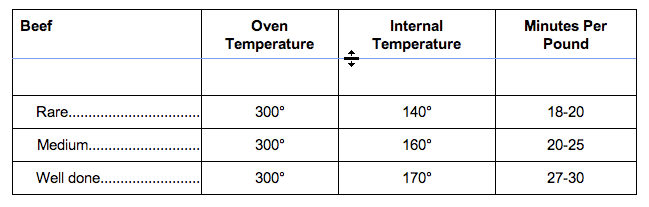
Last month, we launched a feature to let you search for text inside the PDFs in your documents list. Now, using the same optical character recognition technology, you can search for and copy highlighted text when you open a scanned PDF, like a fax or hotel receipt.


It’s not just stuff in your documents list: we’ve also made text in PDFs and images uploaded to Google Sites searchable.

And that’s not all... 
In addition to the features that were released today, over the last few weeks we’ve also made a bunch of other changes that you may have noticed. Now you can:
  • Add custom Javascript and CSS to your Google Sites 
  • See full names in document and presentation comments (instead of showing email addresses) 
  • Use keyboard shortcuts for navigating between table cells in documents 
  • Cancel running scripts from the Google Apps Script editor 
  • Add donut charts and error bars in spreadsheets 

Posted by Ian Kilpatrick, Software Engineer
Read More
Posted in Android, comments, discussions, documents, drawings, presentations | No comments

Tuesday, 13 September 2011

This week in Docs: Format painter, Google Fusion Tables, and drag & drop images

Posted on 10:09 by Unknown
This week in Docs, we’re introducing three new tools that put the fun in functional.

Format painter in Google documents

First, we’ve added a format painter to help you copy formatting within Google documents. The new format painter allows you to copy the style of your text, including font, size, color and other formatting options and apply it somewhere else in your document. To use the format painter, select the text for the formatting you want to copy, press the paintbrush button in your toolbar, and then select the text where you want to apply that formatting.

If you double-click on the format painter icon, you’ll enter a mode that lets you select multiple sections of text so you can apply the same formatting to each section.

You can also use keyboard shortcuts for format painting. To copy the style of your selected text, press Ctrl+Option+C for Mac or Ctrl+Alt+C for Windows. To apply any copied styles to whatever text you have selected, press Ctrl+Option+V for Mac or Ctrl+Alt+V for Windows.

Google Fusion Tables in documents list

With this week’s update, we’re also integrating Google Fusion Tables into your documents list. Google Fusion Tables is a data management web application that makes it easy to gather, visualize and collaborate on data online. Now you’ll be able to store and share your Fusion Tables with the rest of the files in your documents list.

Recently, people have used Google Fusion Tables to:
  • Visualize evacuation zones for New York City during Hurricane Irene
  • Host data sets made public by the State of California
  • Gather data from local flu shot clinics for Google Flu Vaccine Finder
  • Map shelters and road status during the tsunami crisis in Japan

Go to Create new > Table from your documents list menu to get started visualizing or sharing tables of data in .csv, .xls or .kml files.

We're working on making Google Fusion Tables available to Google Apps customers and will let you know as soon as they are. Take a tour to learn more about Google Fusion Tables.

Drag & drop images in Google drawings

We also made it easier to add images from your desktop to Google drawings. If you’re using the latest version of Chrome, Safari, or Firefox, you can now drag an image from your desktop and drop it directly in the drawing canvas.


Give these tools a try and let us know what you think in the comments.

Posted by: Micah Lemonick, Software Engineer

Updated 9/13 to add shortcuts for Windows
Read More
Posted in document list, drawings, Google Apps Blog, googlenew | No comments

Monday, 1 August 2011

This week in Docs: Copying drawings and better right-to-left table support

Posted on 10:51 by Unknown
This week in Docs, we have a couple of new features that we hope make your life easier (and more visual). Read on.

Copying and pasting drawings across docs
Starting today, we’re adding support for the web clipboard to the embedded drawing editor so that you can work with drawings within documents, spreadsheets, and presentations. This means that you can now copy shapes from one document and paste them into existing drawings in another doc. You can also use the web clipboard to move a drawing from a document into the standalone drawing editor.


To try this out, open a new document and go to Insert > Drawing to create a drawing in the embedded drawing editor. Click the web clipboard icon and Copy shapes to web clipboard.


Open another doc that you want to paste the drawing into. Click the web clipboard icon and hover to preview the available items -- then, click to paste when you’ve located the drawing you’d like to use.

Better support for right-to-left tables
We’ve also made an improvement to tables that will be useful for Hebrew and Arabic users. If you’ve enabled right-to-left controls from your docs list settings, you’ll now have an option to create tables that are visually right-to-left. This means that the first cell in the table will be in the upper right and that tabbing through the table will move you to the left and down. You can modify a table’s directionality from the table properties dialog.


We hope you enjoy these new features. As always, let us know what you think in the forums and stay tuned for more updates in the next This week in Docs blog post.

Posted by: Aharon Lanin, Software Engineer
Read More
Posted in documents, drawings, Google Apps Blog | No comments

Wednesday, 23 March 2011

Revisions, and presence, and painters, oh my. Updates to Drawings

Posted on 10:00 by Unknown
Today we’re releasing a bunch of new features in Google Drawings, designed to make editing easier and more collaborative.

Presence + Revision history
Google Docs has always been designed to make it easy to work on documents together. We’re making that easier in drawings by introducing two new features. First, we’ve added presence highlights around shapes. The color that you see beside a person’s name in the sidebar is now used to highlight the shapes which that person has selected. In the example below, mfrederick is editing the triangle at the edge of the drawing.

When you’re working on drawings together it’s really helpful to see who made which change and to be able to go back to previous versions. That’s just what we’ve added. We took the new revisions interface from documents and spreadsheets and brought it to the drawings editor. Now it’s easy to see all the edits that went into your drawing. You’ll also see the full revision history for any drawings that you’ve already created.


Format painter & recent colors
The new format painter lets you choose a source shape, press the format painter icon to copy its formatting, and then click on another shape to apply that formatting to the destination shape.

Colors are a special type of formatting because in drawings you can choose any color value you want. This feature is nice because it lets you make your drawings just so, but it can be frustrating because you need to remember any custom color codes in order to make sure that different shapes had the same colors. You can now solve that problem with the format painter, but we’ve also made matching colors even easier by adding a recent color palette. The palette shows you up to eight custom colors that you’ve used in your drawings.


Sub-group selection
Groups help you keep your drawings organized and they make it easy to format a bunch of shapes with a single action. But sometimes when you have a group of shapes, there’s a single shape that you want to modify. Before now, you would need to ungroup the shapes, make your modification, and then regroup. But today we’ve added the ability to select a shape within a group. To do this, first click on any shape in the group, then click again on the specific shape that you want to modify. You’ll see outlines and dragging handles around the entire group and also around the shape you selected.


Hopefully these features make online drawings a little easier. If you’ve got any fun drawings that you created, please share them with us in the comments.

Posted by: Misha Leder, Software Engineer
Read More
Posted in drawings, Google Apps Blog, googlenew | No comments

Wednesday, 22 December 2010

Our favorite Docs things - 2010 Year in Review

Posted on 07:04 by Unknown
We’ve been keeping busy this year with over 85 new enhancements to Google Docs and Google Sites, making it possible for you to work, communicate and collaborate entirely in the cloud. We wanted to take a moment to share a few of the most exciting enhancements from 2010 that are making it easier for you to go “100% web.”

In addition to some of the most requested favorite features like mobile editing, OCR, advanced sorting rules and a more consistent look, here are more of our team’s favorite things from this last year:
  • A new Google Docs built from the ground up for real-time collaboration
  • The new Google drawings editor for making flowcharts, diagrams and more
  • Upload and store your files in the cloud and stop worrying about losing files
  • Simplified sharing with new features like “Private”
  • New charts editor and chart types because pictures are worth 1000 words
  • New revision history UI in documents and spreadsheets make it easier to see what has changed
  • Horizontal navigation in Sites gives you more options when building your sites
  • More fonts in documents provide you with more ways to express yourself
  • Formula highlighting in spreadsheets makes it easier to understand your formulas
  • Google Docs demo makes it easier for anyone to try Google Docs
We look forward to bringing you more improvements next year. Let us know what is at the top of your Google Docs and Sites wish list in the comments.

On behalf of the entire the Google Docs and Google Sites teams, happy holidays! We’ll see you in the New Year!

Posted by: Jonathan Rochelle, Director, Product Management
Read More
Posted in document list, documents, drawings, Google Apps Blog, Google Sites, spreadsheets | No comments

Demo Slam! Epic Docs Animation

Posted on 06:25 by Unknown
If you’re reading this post, you’ve probably seen your fair share of Google Docs videos featured on this blog. Well, we have one more to show you this year, created entirely with Google Docs, demonstrating the power of nothing but the web -- and it just might be our favorite yet.

Google introduced Demo Slam in October 2010 as a way to turn traditionally boring tech demonstrations into out-of-this-world displays of technology. A couple of weeks ago, three animators worked together for three days in three different cities to create a Google Docs demo slam using Google presentations and drawings. Take a look:


If you like what you see, vote for “Epic Docs Animation.” Let the Slam begin!

Posted by: Tu Uthaisri, Google Creative Lab
Read More
Posted in drawings, Google Apps Blog, presentations | No comments

Tuesday, 14 December 2010

Tips & Tricks: Building Organizational Charts in Google drawings

Posted on 09:01 by Unknown
With the new addition of connectors in Google drawings, it’s easier than ever to build anything from a family tree to a flowchart in just a few minutes.

In honor of the holidays, we thought we’d create a bracket-style showdown between our favorite types of pie.

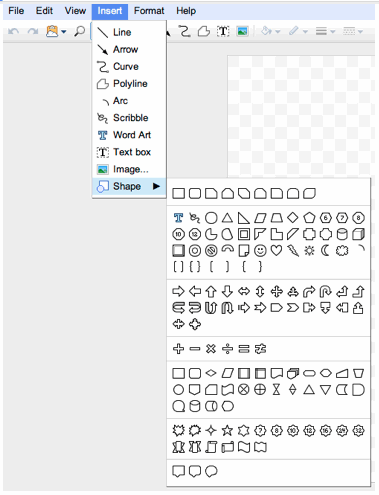
Select Shape from the Insert menu, and you’ll see a variety of bubbles, arrows, and symbols to choose from. I used the rounded rectangle shape for this example, but you can select the shape that’s best for your flowchart.


From there, you can double-click on individual bubbles to enter text.


When you select and drag a particular object, the snap to guides will help you line it up with other objects.


Hold Shift and click to select multiple objects at once. This allows you to move these objects around as a group.


Next, use our newly launched connector tool to attach lines to your shapes. Even if you move or rotate your shapes, they’ll stay connected.


In just a few steps, you’ll have created an organizational chart that you can share, download, or embed into another Google doc. Try it out for yourself.


Want to know what else you can do in Google drawings? Check out our template gallery for more inspiration.

Posted by: Teresa Wu, Consumer Operations Associate
Read More
Posted in drawings, Google Apps Blog | No comments

Thursday, 9 December 2010

Your feedback makes a difference: Product Ideas

Posted on 12:01 by Unknown
Many of you have visited our Product Ideas page to let us know what features you’d like to see in Google Docs or what you think we’re missing. Your participation was astounding: we received over 165,000 votes on over 5,000 ideas from thousands of people around the world over the course of a year. Here are just a few of the things we launched in the last year that accomplish many of the things you’ve been asking for:
  • Real-time collaboration. While we’ve had real-time collaboration in spreadsheets since 2006, we enhanced our collaboration in documents in April 2010 to be truly real-time. Now you can follow along character-by-character with your friends, family and colleagues.
  • Google Docs on mobile devices. You can now view and edit on your Google Docs on the go.
  • Convert more file types to Google Docs format. You can convert a variety of file types - from .doc to .txt to .pdf - to Google Docs format and vice versa.
  • Optical Character Recognition (OCR). This new feature interprets scanned files and PDF files and converts them to Google documents format.
  • A stand-alone drawings editor. You requested a mind mapping tool, and we delivered Google drawings. And to make your mind maps and drawings even better, we just added connectors.
  • Chat in documents, presentations and spreadsheets. Now you can ask fellow collaborators a question right in the document.
  • A more consistent look for all Google Docs editors. Documents, presentations and spreadsheets used to have different interfaces and varying menus.
  • Advanced sorting rules and in-cell drop down lists. These two features in Google spreadsheets now make your spreadsheet editing and organization more streamlined.
We’re starting a new process with the Product Ideas page to make sure we keep it fresh and avoid favoring older posts. We’ve temporarily closed the page to new posts to gather a comprehensive look at your ideas thus far and to restructure our Product Ideas sessions.

In order to get the most precise feedback possible, the new Product Ideas sessions will be targeted at a specific feature, product or idea. These sessions will happen every three months or so for a few weeks at a time. As we receive new ideas on the Product Ideas page, we’ll keep working hard to implement the top requests and ideas that are posted. We’ll let you all know when the ideas page is open and post ongoing updates here on the blog and in the help forum.

Posted by: Julia Harter, Consumer Operations Associate
Read More
Posted in documents, drawings, Google Apps Blog, spreadsheets | No comments

Import WMF files into Google drawings

Posted on 09:00 by Unknown
Yesterday we added a new import type for Google drawings: Windows Metafile (WMF) . It’s an image format that’s designed to be scalable. Unlike other image formats (PNG, JPEG, etc.) WMF files use vectors to represent pictures so that no matter how much you stretch an image, it will never look pixelated.

To import a WMF file to Google drawings, start with a WMF file you own on your computer like this one:


Go to the upload page in Google Docs, and select the image that you’ll be uploading. Make sure to check the box to automatically convert files to the corresponding Google Docs formats.

When you click on the uploaded file, it will open in Google drawings. From there it’s easy to view the image, or to edit it yourself. Here’s what that same bag looks like with a green interior:


We hope this feature makes it a little easier to take your drawings and move them to the cloud.

Posted by: Chris Nokleberg, Software Engineer
Read More
Posted in drawings, Google Apps Blog, googlenew | No comments

Wednesday, 8 December 2010

Staying connected in Google drawings

Posted on 10:30 by Unknown
Ever since we launched the Google drawings, the most requested feature has been shape connectors. Well today, they’re here.

From now on, when you add a new line in a Google drawing, you can connect that line directly to a shape (old lines will need to be replaced with new lines). Think of connectors as the glue that keeps your drawings together: no matter how much you move around or rotate your shapes, the lines attached to them will stretch so that the shapes stay connected.

To use a connector, start drawing a line and move your cursor near an existing shape. You’ll see small red dots, showing you the points on the shape that you can connect to. Release your mouse when you’re hovering over a point, to connect the line to that point.

Connectors are especially helpful for complex drawings with lots of shapes and lines.


We’re hoping connectors will make drawing online just a little bit easier. Let us know what you think in the comments.

Posted by: Chris Nokleberg, Software Engineer
Read More
Posted in drawings, Google Apps Blog, googlenew | No comments

Tuesday, 7 December 2010

New this week in Docs: Connectors, hidden controls, and more upload options

Posted on 21:39 by Unknown
From connectors in drawings to hidden controls, we have a lot of updates to share this week:

Connectors in drawings
Since we launched Google drawings in April, the most requested feature has been line connectors. Starting today, all new lines can connect to shapes making it easier to create flowcharts and complex diagrams.

Insert images directly from Picasa
If you’ve got images stored in your Picasa web albums, the image dialog will let you insert those images directly into documents and drawings.


Hidden controls
A couple weeks ago, we introduced compact controls to the document editor. This week we’re bringing compact controls to the drawing editor as well. We also added a new feature to both documents and drawings: hidden controls. Choosing View -> Hide controls will hide the title bar, menu bar, and toolbar. Once you’ve hidden the controls, you can always press Esc to make them appear again.

WMF upload
We now support uploading WMF (Windows Metafile) files and converting them into Google drawings.

Stay tuned for in-depth posts throughout the rest of the week.

Posted by: Jeffrey Harris, Product Manager
Read More
Posted in documents, drawings, Google Apps Blog, googlenew | No comments

Wednesday, 3 November 2010

Writing a campaign speech with Google Docs

Posted on 11:06 by Unknown
A few months ago, my colleague Julia and I were at a technology conference for educators. Teachers were very enthusiastic when we demonstrated working together on documents at the same time and were really excited about how they could use it in their classrooms. What surprised us though, was how many of our favorite features - like working together at the same time - were brand new to them.

We knew we wanted to share that same excitement with even more people. Inspired by the Search Stories videos, we set off to tell a story using Google Docs. The result is this video:


We hope you enjoy seeing some of the cool features Google Docs offers in action. And if you think your friends would like it, show it to them too!

Posted by: Bryan Carroll, Consumer Operations Strategist, Google Docs
Read More
Posted in documents, drawings, forms, Google Apps Blog | No comments

Thursday, 2 September 2010

Drawing out ideas in documents

Posted on 09:07 by Unknown
Have you recently toiled over instructions to assemble furniture? Now imagine the agony if you had no illustrations to fall back on. What’s the best way to teach kids about nutrition without a food pyramid?

Sometimes when working with text you realize that words can only articulate so much. And that’s why we have drawings in Google documents. Drawings can be useful for things like diagramming processes in a flowchart or clearly articulating the relationship between a groups of ideas.


To get started, select the Drawing option from the Insert menu:


Now, you’ll see the drawing editor.


When creating a drawing for a document, the shapes menu can be particularly helpful. From thought bubbles to arrows to a smiley-face, this menu can help you whip up something playful or professional in no time.


As with images, you can resize a drawing and even mark it as inline or fixed within your document.
You can also copy an existing Google drawing into a document. To do that, first select the relevant shapes in your original drawing, and then copy them using the Web clipboard.


In your document, open the Web clipboard and paste the drawing into your document.


Give it a test drive and let us know what you think in the comments.

Posted by: Henry Lau, Software Engineer
Read More
Posted in documents, drawings, Google Apps Blog | No comments

Friday, 6 August 2010

A new curve tool for drawings

Posted on 10:00 by Unknown
Sometimes scribbles just don’t cut it and you need more powerful curve tools in Google drawings. Well, we’ve just released a tool that does just that, based on cardinal splines.

The new curves can be left open or closed, and can be filled or unfilled. You can also adjust points on the curve after drawing it.


Most importantly, this tool is fun. You can freehand a nice logo, like this:


Or make vector art from your photographs, like this:

(original image)

For the heavy scribble users out there, the curve tool replaces the scribble tool in the icon bar, but the original hasn’t disappeared. You can now find the scribble tool under the shapes icon. It’s also available via Insert > Scribble.


We’re excited to see what you can make with the new curve tool. Please share your work in the template gallery, and let us know what other design tools you’d like to see in drawings on the forums.

Posted by: Gabe Cohen, Product Manager
Read More
Posted in drawings, Google Apps Blog | No comments

Tuesday, 3 August 2010

Table resizing and other niceties in documents

Posted on 09:42 by Unknown
Want to add “Googlers” to your document dictionary? (It is a real word, you know...) Need to resize columns and rows in a table? Want to get rid of that pesky ruler permanently? Wouldn’t it be nice to be able to copy your Google drawing into your documents? You can with a few new small updates to Google documents.

Add words to your dictionary

You can add words to the spellchecking dictionary by right-clicking on any word that’s marked as misspelled and selecting Add to dictionary.


Drag to resize table columns and rows

We just made it much easier to change the sizes of columns and rows in tables. Just click and hold on any of the row dividing lines and drag the line to a different location to adjust the row height or column width.

Persistent show/hide ruler setting

If you want to hide the ruler at the top of documents, uncheck the Show ruler option from the View menu and the setting will now apply to all of your documents.


Copying from web clipboard

Lastly, we added the ability to copy an existing Google drawing into a document. From inside drawings click on the web clipboard icon and select Copy entire drawing to web clipboard.


Then, when you’re in your document, you can click on the web clipboard icon again and choose to paste the drawing.

Let us know what you think in the forums.

Posted by: Kristin Stephens, Software Engineering Intern
Read More
Posted in documents, drawings, Google Apps Blog | No comments

Monday, 19 July 2010

A zoom tool and more in drawings

Posted on 10:07 by Unknown
In a visual application like Google drawings, we know the details count, which is why we’re excited to announce another batch of features and shortcuts that will help you refine your drawings. Create a drawing to check them out.

Zoom improvements
We’ve added several new and simple ways to zoom in and out within a drawing: a zoom tool on the toolbar; the ability to draw a rectangle around an area to zoom; zoom levels to the View menu; and keyboard shortcuts to zoom in (Ctrl Shift → or Cmd Shift → on a Mac) and zoom out (Ctrl Shift ← or Cmd Shift ← on a Mac).


Pie and arc drawing improvements
Once you’ve selected the pie or arc shape, drag from the center point, then release to set the radius, move your mouse along the circumference to set the angle, then click when you’re done. Hint - you can hold shift during step 2 to constrain your arc to 15 degree increments.

You can also select Edit > Change Shape to toggle between a pie shape and arc shape.


Duplicate while rotating and resizing
You may already know that if you hold Control (or Command on a Mac) you can make a copy of an object as you drag it. Well, we have extended the Control/Command modifier to duplicate objects while you resize and rotate objects too, which makes it easy to make both concentric and radial diagrams.

Hint: duplicating while resizing works better if you resize from large to small, since each new object gets placed on top.


New line decoration controls
Now you can change the style of the cap used at the end of your lines from the default butt cap to use square caps or round caps (see below).


You can also change the appearance of line joins within your polylines and shapes from the default round join to use miter joins or bevel joins. These options are available via Format > Line decorations.


Let us know what you think in the forums.

Posted by: Chris Nokleberg, Software Engineer
Read More
Posted in drawings, Google Apps Blog | No comments

Monday, 12 July 2010

A Guide to Getting Started with Google drawings

Posted on 10:22 by Unknown
Last year we published Getting Started Guides for spreadsheets, documents, and presentations -- because using a product for the first time can sometimes be challenging. People have found these very helpful, so we’ve created a Getting Started Guide for drawings.

This guide covers the basics about Google drawings and gives you all the information you need to start creating, editing, formatting, and sharing your drawings. It also includes some tips and tricks about features you may not know too much about. If you already use Google presentations, but aren't so familiar with drawings, you can read this guide to learn, for example, how to embed your drawing into a presentation.

Don't forget to share this link with your family, friends, and coworkers who may want to get started with Google drawings.

After you're finished reviewing the guide, check our Help Center for more information. And if you have questions or want to share your suggestions and comments, visit our product ideas page.

Posted by: Bryan Carroll, Consumer Operations Strategist
Read More
Posted in drawings, Google Apps Blog | No comments

Wednesday, 16 June 2010

New features for drawings

Posted on 09:56 by Unknown
We'd like to let you know about a few new features we’ve recently added to drawings. Go create a drawing to check them out.

Center on page
While it’s possible to use alignment guides to center an object or group of objects on the page, now you can center an object on the page quickly using the context menu or Format menu.

Aspect-constrained canvas re-size
You’ll often want to just shrink or expand your working canvas size without changing the aspect ratio, which is 4 x 3 by default. So, now you can hold shift while you re-size the canvas to preserve its current aspect ratio.


Thumbnails for drawings in the doc list
When you search for drawings it’s really helpful to see the results. Now you can use the thumbnail view in your doc list to quickly preview all of the drawings in the results of your search.


Full text search for drawings
Some drawings may also contain text that you may want to search for. Now we let you search through all of the text in your drawings - within a text box, shape, or word art - so that when you search for that text from your private docs list, your drawing will show up in the results.


Pop-up keyboard shortcut help
We know there are a lot of tricky little keyboard modifiers you need to know about to use some of the most powerful features of drawings. Now these shortcuts be easily inspected at a glance by hitting Control / or Command / on a Mac which has the distinction of being the last keyboard shortcut you ever need to memorize. Kudos to the Gmail team for inspiring this design.


Let us know what you think in the forums.

Posted by: Chris Nokleberg, Software Engineer
Read More
Posted in drawings, Google Apps Blog | No comments
Older Posts Home
Subscribe to: Posts (Atom)

Popular Posts

  • Merge cells vertically in Google spreadsheets
    There are many times when you want to format your spreadsheets in a certain way to make your data easier to read and understand. Starting to...
  • A completely new look for Drive on iOS
    One of the features you’ve told us you want on Drive for iOS is the ability to effortlessly browse and preview files, just like you can on A...
  • What's The Right Answer?
    Sometimes the same question can have multiple answers, even when you're looking for a simple fact. I've searched for [ny population]...
  • Google Quick View
    Google Search for mobile has a new feature called " Quick View ". Right now, it only shows up for Wikipedia results and it allows ...
  • Hosting a viewing party for the OSCARS®
    Last year, I planned an OSCARS® viewing party with my friends. To add some friendly competition and figure out who was coming, I collected p...
  • Upload and store your files in the cloud with Google Docs
    We're happy to announce that over the next few weeks we will be rolling out the ability to upload, store and organize any type of file i...
  • Summarize your data with pivot tables
    Starting today, we're rolling out pivot tables in Google spreadsheets. Pivot tables make it easy to process and summarize large data set...
  • In-cell dropdown and validation in spreadsheets
    Today, we added in-cell dropdown and validation to spreadsheets. This makes it easy to constrain the values of an individual cell to a spec...
  • More In-Depth Articles in Google Search
    For general queries like [ global warming ], [ love ], [ Mandela ], [ China ], Google shows some in-depth news articles at the bottom of th...
  • The Google Docs for students page
    We recently launched the Google Docs for students page which highlights how various student populations can use Google Docs in their daily ...

Categories

  • Acquisitions
  • Ads
  • Android
  • Annoyances
  • April Fools Day
  • attachments
  • back to school
  • Blogger
  • charts
  • chat
  • Chrome
  • Chrome extensions
  • chrome web apps
  • Cloud Connect
  • collaboration
  • comments
  • community
  • discussions
  • DMCA
  • docs
  • document list
  • documents
  • documents list
  • drawings
  • drivebacktoschool
  • Easter Egg
  • education
  • Faces of Docs
  • forms
  • gmail
  • gone google
  • Google Alerts
  • Google Analytics
  • Google Apps Blog
  • Google Apps Script
  • Google Calendar
  • Google Cast
  • Google Checkout
  • Google Chrome
  • Google Chrome OS
  • Google Cloud Connect
  • Google Contacts
  • Google Dictionary
  • Google Docs
  • Google Docs Viewer
  • google documents
  • google drive
  • Google Earth
  • Google Goggles
  • Google Hangouts
  • Google Instant
  • Google Keep
  • Google Latitude
  • Google Local
  • Google Maps
  • Google Music
  • Google News
  • Google Notebook
  • Google Now
  • Google Pack
  • Google Photos
  • Google Play
  • Google Plus
  • Google Reader
  • Google Sites
  • Google Suggest
  • Google Takeout
  • Google Talk
  • Google Toolbar
  • Google Translate
  • Google Trends
  • Google Voice
  • Google Wallet
  • Google+
  • googlenew
  • Greasemonkey
  • Guest Post
  • holiday
  • iGoogle
  • Image Search
  • images
  • InOut
  • iOS
  • Keep
  • Knowledge
  • mobile
  • OCR
  • offline
  • OneBox
  • paperless
  • pdfs
  • photo
  • photos
  • Picasa Web Albums
  • presentations
  • product ideas
  • profiles
  • quickoffice
  • Reddit
  • research
  • save to drive
  • scripts
  • Security
  • sharing
  • sheets
  • shortcut
  • slides
  • spell check
  • spreadsheets
  • stock photos
  • storage
  • students
  • tables
  • teachers
  • templates
  • Tips
  • User interface
  • videos
  • Viewer
  • Visualization
  • Voice Search
  • Web Search
  • Yahoo
  • YouTube

Blog Archive

  • ▼  2013 (519)
    • ▼  December (33)
      • Google Maps Easter Egg for Christmas
      • Google Music to Add Upload Feature
      • Sound Search Playlist in Google Music
      • Google Zeitgeist 2013
      • Google Zeitgeist Quiz
      • Google's Christmas Carols Easter Egg
      • More About Gmail's Proxy
      • Custom Maps in the New Google Maps
      • Auto Awesome Snow Shake in Google+ for Android
      • Updated Google Settings Page
      • Google Uses a Proxy to Load Gmail Images
      • Google's Animated Decorations for Christmas
      • The New Google Sheets
      • Google's Video Duration Experiment
      • New Google Sheets: faster, more powerful, and work...
      • 9 New Languages in Google Translate
      • 10 New Chromecast Apps
      • Google Settings Page for Phone Numbers
      • Connect Google Photo Spheres
      • Google Open Gallery
      • More In-Depth Articles in Google Search
      • Google's Mobile Image Search Adds Menu
      • Auto Awesome, Winter Special
      • Export Gmail and Google Calendar Data
      • The Old Google Contacts, No Longer Available
      • Location Autocomplete in Google Calendar
      • Short URLs in the New Google Maps
      • Chromecast Game
      • Personalized Embedded Google Maps
      • Google Santa Tracker
      • Chrome Download Tips
      • More Search Results in the New Google Maps
      • My Google?
    • ►  November (44)
    • ►  October (64)
    • ►  September (50)
    • ►  August (63)
    • ►  July (60)
    • ►  June (57)
    • ►  May (62)
    • ►  April (49)
    • ►  March (33)
    • ►  February (1)
    • ►  January (3)
  • ►  2012 (34)
    • ►  December (4)
    • ►  November (4)
    • ►  October (5)
    • ►  September (4)
    • ►  August (2)
    • ►  July (1)
    • ►  June (3)
    • ►  May (2)
    • ►  April (2)
    • ►  March (2)
    • ►  February (5)
  • ►  2011 (80)
    • ►  December (4)
    • ►  November (1)
    • ►  October (7)
    • ►  September (10)
    • ►  August (11)
    • ►  July (8)
    • ►  June (9)
    • ►  May (1)
    • ►  April (8)
    • ►  March (8)
    • ►  February (8)
    • ►  January (5)
  • ►  2010 (118)
    • ►  December (11)
    • ►  November (16)
    • ►  October (6)
    • ►  September (13)
    • ►  August (13)
    • ►  July (7)
    • ►  June (15)
    • ►  May (11)
    • ►  April (7)
    • ►  March (7)
    • ►  February (6)
    • ►  January (6)
  • ►  2009 (82)
    • ►  December (14)
    • ►  November (4)
    • ►  October (10)
    • ►  September (10)
    • ►  August (4)
    • ►  July (6)
    • ►  June (6)
    • ►  May (5)
    • ►  April (4)
    • ►  March (8)
    • ►  February (7)
    • ►  January (4)
  • ►  2008 (97)
    • ►  December (6)
    • ►  November (4)
    • ►  October (6)
    • ►  September (8)
    • ►  August (5)
    • ►  July (7)
    • ►  June (11)
    • ►  May (20)
    • ►  April (13)
    • ►  March (6)
    • ►  February (6)
    • ►  January (5)
  • ►  2007 (25)
    • ►  December (1)
    • ►  November (1)
    • ►  October (2)
    • ►  September (3)
    • ►  August (3)
    • ►  July (4)
    • ►  June (3)
    • ►  May (2)
    • ►  April (2)
    • ►  March (1)
    • ►  February (2)
    • ►  January (1)
  • ►  2006 (10)
    • ►  December (2)
    • ►  November (4)
    • ►  October (4)
Powered by Blogger.

About Me

Unknown
View my complete profile