Free Online Storage

  • Subscribe to our RSS feed.
  • Twitter
  • StumbleUpon
  • Reddit
  • Facebook
  • Digg

Tuesday, 21 September 2010

What’s different about the new Google Docs: Working together, even apart

Posted on 07:05 by Unknown
Editor’s Note: In May, we walked through some technical details about what’s different in the new Google Docs. Beginning today, we’ll dive into the collaboration technology behind Google Docs in three parts, starting with a look at the challenges encountered when building a collaborative application. Tomorrow’s post will describe how Google Docs uses an algorithm called operational transformation to merge edits in real time. Finally, on Thursday, we’ll dive into the collaboration protocol for sending changes between the editors.

The way people work is changing. Ten years ago, it was too hard to co-author a document, so things took longer, or people just put up with less collaboration. But as our communication tools have become better, it’s become more common to have a group of people writing a doc collaboratively.

Collaboration is technically difficult because many people can be making changes to the same content at almost the same time. Since connection speeds aren’t instantaneous, when you make a change, you’re temporarily creating a local version of the document that is different from the versions other collaborators see. The core implementation challenge is to make sure that all the editing sessions eventually converge on the same, correct, version of the document.

One approach taken by the old Google documents and by many other collaborative word processors is to compare document versions. Suppose there are two editors: John and Luiz. In the old Google Docs, the server begins with one version of a document and receives an updated version from John. The server finds the differences between its version and John’s version and decides out how to merge those two versions as best it can. Then the server sends this merged version to Luiz. If Luiz has changes that have not yet been sent to the server, then he needs to compare the server version with his local version and merge the two versions together. Then Luiz sends this merged local version to the server and the process continues.

But often, this approach doesn’t work well. Take the example below. John, Luiz and the server start with the text The quick brown fox. John bolds the words brown fox. As he’s doing this, Luiz highlights the word fox and replaces it with the word dog. Suppose John’s changes arrive at the server first, and then the server sends those changes to Luiz.
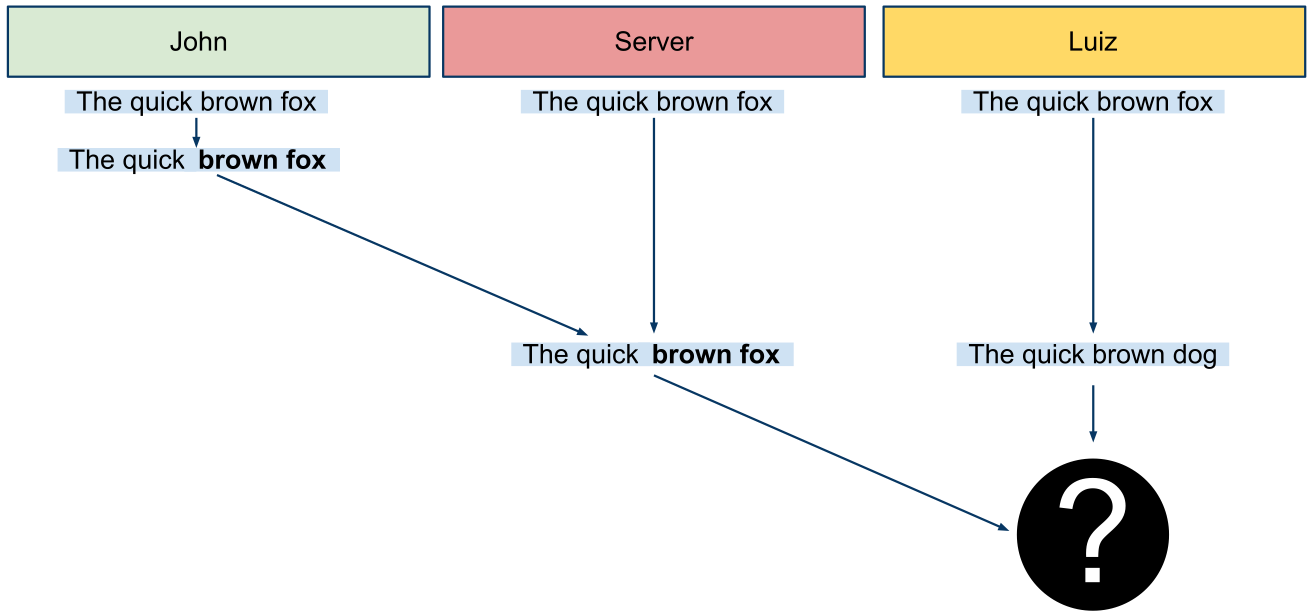


The correct way to merge John’s style change and Luiz’s text substitution is as The quick brown dog. But Luiz doesn’t have enough information to know what the correct merge is. From his perspective, The quick brown fox dog, The quick brown dog, The quick brown dog fox are all perfectly valid ways of merging the two versions. And that’s the problem: if you just compare versions, you can’t make sure that changes are merged in the way that an editor would expect.

You can avoid the merging problem by introducing more restrictions on the editors. For example, you could lock paragraphs so that only one editor was ever allowed to type in a single paragraph at a given time. But locking paragraphs isn’t a great solution: you’re sidestepping the technical challenges by hampering the collaborative editing experience. Plus, it’s always possible for two editors to begin editing a paragraph at the same time. In that case, one of the editors will find out that he didn’t actually acquire the paragraph lock and any changes that he made while he thought he had the lock will need to be merged (which has all of the above problems) or discarded.

The new version of Google documents does things differently. In the new editor, a document is stored as a series of chronological changes. A change might be something like {InsertText 'T' @10}. That particular change was to insert the letter T at the 10th position in the document. A fundamental difference between the new editor and the old one is that instead of computing the changes by comparing document versions, we now compute the versions by playing forward the history of changes.

This approach creates a better collaboration experience, because the editors’ intentions are never ambiguous. Since we know the revision of each change, we can check what the editor saw when he made that change and we can figure out how to correctly merge that change with any changes that were made since then.

That’s it for today. Tomorrow’s post will give an overview of the algorithm for merging changes — operational transformation. Even if we know how to properly merge changes, we still need to make sure that each editor knows when there are changes that need to be merged. This challenge is handled by the collaboration protocol which will be the subject of Thursday’s post. Together, these technologies create the character-by-character collaboration in Google Docs.

Posted by: John Day-Richter, Software Engineer
Read More
Posted in documents, Google Apps Blog | No comments

Thursday, 16 September 2010

Print your spreadsheets (and save ink) with more printing options

Posted on 13:00 by Unknown
With the power of the cloud, you have access to and can share your files from basically any device without needing to print out anything. We understand that there are occasions when you still need to print, however, and that’s why today we’re happy to announce two new features for printing: selection printing and gridless printing. These two new options allow you to not only customize your printouts, but also save ink in the process.

With selection printing you can print a highlighted section from your spreadsheet. The new option to not print the default gridlines is valuable if you’re trying to print a handout or trying to save ink. You can access these settings via File > Print.


These printing improvements are a direct result of feedback from many of you. If you have more ideas, let us know in the forums.

Posted by: Julian Mcauley, Software Engineering Intern
Read More
Posted in Google Apps Blog, spreadsheets | No comments

Friday, 10 September 2010

Back to School with Google forms

Posted on 09:00 by Unknown
Cross posted on the Google Student Blog

Guest Post: Emily is a senior at Emory University, majoring in Business and Biology. This summer, she worked as an intern on the Google Apps for Education team and here she shares her thoughts on using Google forms on campus.

During the hectic first few weeks back at school – which can be the busiest time of year for a college student – one of the things that helps me get things done and stay organized is Google forms. I started using this functionality a lot during my summer internship to survey the intern community and other groups across the company. It’s an easy and efficient way to obtain and interpret information from many people and that’s why I’m excited to use it now that I’m back at school.

Google forms allows me to quickly create a survey with various information gathering formats (multiple choice, free answer, check box, and more). Then I can simply send a link for the published form to the desired respondents and their answers automatically feed into a spreadsheet in Google Docs.

For example, I recently used Google forms for a club I’m involved in called Goizueta International Network, an organization that helps incoming and outgoing exchange students make the most of their abroad experiences. Google forms allowed me to survey the international exchange students about what activities they would be interested in for the upcoming year.

All the international students are from different countries and live all across campus, so creating a survey using Forms was a convenient and universally understandable way to get information. Plus I was able to spice up the appearance of the survey with a new Google form theme.


After collecting all of the responses, I could easily view the results of my data. All I had to do was go to the “Form” tab in the spreadsheet housing all of the survey information and select “Show summary of responses.” This produced the data in a simple, clear graphical format making the data easy to use.

Check out the responses to the question “I am interested in the Goizueta International Network organizing the following...”


We’ve decided to focus on the ideas that had the most support. We know they will benefit and excite both local and foreign students because they all participated in the decision process.

Google forms can be useful in any area of a college student’s life. It can classify and coordinate information for classes, clubs, athletic teams, fraternities or sororities, friends, family, or any group or organization. As a Google Student Ambassador I plan to educate more people on my campus about how Google forms (along with the rest of the Docs and Apps suite) can make all their activities run more quickly and easily.

Without putting in too much effort, we got a solid response rate and now have some great ideas for next year.

Posted by: Emily Rubin, Emory University
Read More
Posted in Google Apps Blog | No comments

Wednesday, 8 September 2010

Learn about Google Docs

Posted on 09:47 by Unknown
Google Docs is more than just creating online documents, spreadsheets and presentations. With Google Docs, you can access your files from anywhere, share them with the people you choose, and work together in real time.

To help those of you just getting started with Google Docs we have created a new series of videos. These videos give a high level overview and steps to get started. And since each video is focused on one feature, its easy to only learn about the ones that matter most to you:

Document list
Sharing
Collaboration
Documents
Spreadsheets
Presentations
Forms
Drawings

In addition, we just launched our own YouTube channel at youtube.com/docs. You can view all of the videos above in the custom video gadget at the top of the channel, which will help you keep track of which videos you've already watched.

If you’re just getting started, we hope these videos help you discover more about Google Docs. And if you’re a Google Docs expert, you might enjoy sharing some of these videos with a friend.

Posted by: Peter Harbison, Product Marketing Manager
Read More
Posted in Google Apps Blog | No comments

Tuesday, 7 September 2010

Easier site organization with drag and drop

Posted on 08:41 by Unknown
Page organization is an important part of using Google Sites, especially when you want to make a lot of changes to your Site’s structure. To make it easier and save you time, we just enabled drag and drop functionality in the Pages area of site management. Site owners and collaborators can try it out on via Manage site > Pages in the tree view.

We hope you like this little time-saver.

Posted by: Santos Cordon, Software Engineer
Read More
Posted in Google Apps Blog, Google Sites | No comments

Friday, 3 September 2010

Trimming our privacy policies

Posted on 09:01 by Unknown
Cross posted on the Gmail Blog and the Official Google Blog

Long, complicated and lawyerly—that's what most people think about privacy policies, and for good reason. Even taking into account that they’re legal documents, most privacy policies are still too hard to understand.

So we’re simplifying and updating Google’s privacy policies. To be clear, we aren’t changing any of our privacy practices; we want to make our policies more transparent and understandable. As a first step, we’re making two types of improvements:
  1. Most of our products and services are covered by our main Google Privacy Policy. Some, however, also have their own supplementary individual policies. Since there is a lot of repetition, we are deleting 12 of these product-specific policies. These changes are also in line with the way information is used between certain products—for example, since contacts are shared between services like Gmail, Talk, Calendar and Docs, it makes sense for those services to be governed by one privacy policy as well.
  2. We’re also simplifying our main Google Privacy Policy to make it more user-friendly by cutting down the parts that are redundant and rewriting the more legalistic bits so people can understand them more easily. For example, we’re deleting a sentence that reads, “The affiliated sites through which our services are offered may have different privacy practices and we encourage you to read their privacy policies,” since it seems obvious that sites not owned by Google might have their own privacy policies.
In addition, we’re adding:
  • More content to some of our product Help Centers so people will be able to find information about protecting their privacy more easily; and
  • A new privacy tools page to the Google Privacy Center. This will mean that our most popular privacy tools are now all in one place.
These privacy policy updates will take effect in a month, on October 3. You can see the new main Google Privacy Policy here, and if you have questions this FAQ should be helpful.

Our updated privacy policies still might not be your top choice for beach reading (I am, after all, still a lawyer), but hopefully you’ll find the improvements to be a step in the right direction.

Posted by Mike Yang, Associate General Counsel
Read More
Posted in | No comments

Thursday, 2 September 2010

Drawing out ideas in documents

Posted on 09:07 by Unknown
Have you recently toiled over instructions to assemble furniture? Now imagine the agony if you had no illustrations to fall back on. What’s the best way to teach kids about nutrition without a food pyramid?

Sometimes when working with text you realize that words can only articulate so much. And that’s why we have drawings in Google documents. Drawings can be useful for things like diagramming processes in a flowchart or clearly articulating the relationship between a groups of ideas.


To get started, select the Drawing option from the Insert menu:


Now, you’ll see the drawing editor.


When creating a drawing for a document, the shapes menu can be particularly helpful. From thought bubbles to arrows to a smiley-face, this menu can help you whip up something playful or professional in no time.


As with images, you can resize a drawing and even mark it as inline or fixed within your document.
You can also copy an existing Google drawing into a document. To do that, first select the relevant shapes in your original drawing, and then copy them using the Web clipboard.


In your document, open the Web clipboard and paste the drawing into your document.


Give it a test drive and let us know what you think in the comments.

Posted by: Henry Lau, Software Engineer
Read More
Posted in documents, drawings, Google Apps Blog | No comments
Newer Posts Older Posts Home
Subscribe to: Posts (Atom)

Popular Posts

  • Merge cells vertically in Google spreadsheets
    There are many times when you want to format your spreadsheets in a certain way to make your data easier to read and understand. Starting to...
  • Google Quick View
    Google Search for mobile has a new feature called " Quick View ". Right now, it only shows up for Wikipedia results and it allows ...
  • What's The Right Answer?
    Sometimes the same question can have multiple answers, even when you're looking for a simple fact. I've searched for [ny population]...
  • Summarize your data with pivot tables
    Starting today, we're rolling out pivot tables in Google spreadsheets. Pivot tables make it easy to process and summarize large data set...
  • A completely new look for Drive on iOS
    One of the features you’ve told us you want on Drive for iOS is the ability to effortlessly browse and preview files, just like you can on A...
  • More In-Depth Articles in Google Search
    For general queries like [ global warming ], [ love ], [ Mandela ], [ China ], Google shows some in-depth news articles at the bottom of th...
  • Upload and store your files in the cloud with Google Docs
    We're happy to announce that over the next few weeks we will be rolling out the ability to upload, store and organize any type of file i...
  • An enhanced Google Docs experience on mobile tablets
    Earlier this year, we introduced the Google Docs app for Android . Since then, many users have downloaded the app and enjoyed the benefits o...
  • The Google Docs for students page
    We recently launched the Google Docs for students page which highlights how various student populations can use Google Docs in their daily ...
  • Google Docs makes being green easy
    Posted by: Matt Doublestein, teacher and earth-friendly Google Docs user Recently, we talked to Matt Doublestein, who told us about how Goog...

Categories

  • Acquisitions
  • Ads
  • Android
  • Annoyances
  • April Fools Day
  • attachments
  • back to school
  • Blogger
  • charts
  • chat
  • Chrome
  • Chrome extensions
  • chrome web apps
  • Cloud Connect
  • collaboration
  • comments
  • community
  • discussions
  • DMCA
  • docs
  • document list
  • documents
  • documents list
  • drawings
  • drivebacktoschool
  • Easter Egg
  • education
  • Faces of Docs
  • forms
  • gmail
  • gone google
  • Google Alerts
  • Google Analytics
  • Google Apps Blog
  • Google Apps Script
  • Google Calendar
  • Google Cast
  • Google Checkout
  • Google Chrome
  • Google Chrome OS
  • Google Cloud Connect
  • Google Contacts
  • Google Dictionary
  • Google Docs
  • Google Docs Viewer
  • google documents
  • google drive
  • Google Earth
  • Google Goggles
  • Google Hangouts
  • Google Instant
  • Google Keep
  • Google Latitude
  • Google Local
  • Google Maps
  • Google Music
  • Google News
  • Google Notebook
  • Google Now
  • Google Pack
  • Google Photos
  • Google Play
  • Google Plus
  • Google Reader
  • Google Sites
  • Google Suggest
  • Google Takeout
  • Google Talk
  • Google Toolbar
  • Google Translate
  • Google Trends
  • Google Voice
  • Google Wallet
  • Google+
  • googlenew
  • Greasemonkey
  • Guest Post
  • holiday
  • iGoogle
  • Image Search
  • images
  • InOut
  • iOS
  • Keep
  • Knowledge
  • mobile
  • OCR
  • offline
  • OneBox
  • paperless
  • pdfs
  • photo
  • photos
  • Picasa Web Albums
  • presentations
  • product ideas
  • profiles
  • quickoffice
  • Reddit
  • research
  • save to drive
  • scripts
  • Security
  • sharing
  • sheets
  • shortcut
  • slides
  • spell check
  • spreadsheets
  • stock photos
  • storage
  • students
  • tables
  • teachers
  • templates
  • Tips
  • User interface
  • videos
  • Viewer
  • Visualization
  • Voice Search
  • Web Search
  • Yahoo
  • YouTube

Blog Archive

  • ▼  2013 (519)
    • ▼  December (33)
      • Google Maps Easter Egg for Christmas
      • Google Music to Add Upload Feature
      • Sound Search Playlist in Google Music
      • Google Zeitgeist 2013
      • Google Zeitgeist Quiz
      • Google's Christmas Carols Easter Egg
      • More About Gmail's Proxy
      • Custom Maps in the New Google Maps
      • Auto Awesome Snow Shake in Google+ for Android
      • Updated Google Settings Page
      • Google Uses a Proxy to Load Gmail Images
      • Google's Animated Decorations for Christmas
      • The New Google Sheets
      • Google's Video Duration Experiment
      • New Google Sheets: faster, more powerful, and work...
      • 9 New Languages in Google Translate
      • 10 New Chromecast Apps
      • Google Settings Page for Phone Numbers
      • Connect Google Photo Spheres
      • Google Open Gallery
      • More In-Depth Articles in Google Search
      • Google's Mobile Image Search Adds Menu
      • Auto Awesome, Winter Special
      • Export Gmail and Google Calendar Data
      • The Old Google Contacts, No Longer Available
      • Location Autocomplete in Google Calendar
      • Short URLs in the New Google Maps
      • Chromecast Game
      • Personalized Embedded Google Maps
      • Google Santa Tracker
      • Chrome Download Tips
      • More Search Results in the New Google Maps
      • My Google?
    • ►  November (44)
    • ►  October (64)
    • ►  September (50)
    • ►  August (63)
    • ►  July (60)
    • ►  June (57)
    • ►  May (62)
    • ►  April (49)
    • ►  March (33)
    • ►  February (1)
    • ►  January (3)
  • ►  2012 (34)
    • ►  December (4)
    • ►  November (4)
    • ►  October (5)
    • ►  September (4)
    • ►  August (2)
    • ►  July (1)
    • ►  June (3)
    • ►  May (2)
    • ►  April (2)
    • ►  March (2)
    • ►  February (5)
  • ►  2011 (80)
    • ►  December (4)
    • ►  November (1)
    • ►  October (7)
    • ►  September (10)
    • ►  August (11)
    • ►  July (8)
    • ►  June (9)
    • ►  May (1)
    • ►  April (8)
    • ►  March (8)
    • ►  February (8)
    • ►  January (5)
  • ►  2010 (118)
    • ►  December (11)
    • ►  November (16)
    • ►  October (6)
    • ►  September (13)
    • ►  August (13)
    • ►  July (7)
    • ►  June (15)
    • ►  May (11)
    • ►  April (7)
    • ►  March (7)
    • ►  February (6)
    • ►  January (6)
  • ►  2009 (82)
    • ►  December (14)
    • ►  November (4)
    • ►  October (10)
    • ►  September (10)
    • ►  August (4)
    • ►  July (6)
    • ►  June (6)
    • ►  May (5)
    • ►  April (4)
    • ►  March (8)
    • ►  February (7)
    • ►  January (4)
  • ►  2008 (97)
    • ►  December (6)
    • ►  November (4)
    • ►  October (6)
    • ►  September (8)
    • ►  August (5)
    • ►  July (7)
    • ►  June (11)
    • ►  May (20)
    • ►  April (13)
    • ►  March (6)
    • ►  February (6)
    • ►  January (5)
  • ►  2007 (25)
    • ►  December (1)
    • ►  November (1)
    • ►  October (2)
    • ►  September (3)
    • ►  August (3)
    • ►  July (4)
    • ►  June (3)
    • ►  May (2)
    • ►  April (2)
    • ►  March (1)
    • ►  February (2)
    • ►  January (1)
  • ►  2006 (10)
    • ►  December (2)
    • ►  November (4)
    • ►  October (4)
Powered by Blogger.

About Me

Unknown
View my complete profile